
My Academic Workflow
Creating a Knowledge Garden in Obsidian
As a doctoral student, I read a lot. Any doctoral student starting out will tell you how difficult it is to keep track of all of one’s notes, thoughts, ideas, concepts, and reading passages. There are a plethora of programs and apps out there that help one organize their libraries, notes, and writing. After much research, I have landed on utilziing two applications: Zotero and Obsidian. Additionally, for statistical work and writing, I use R and Quarto.
Zotero is a free, open-source reference manager from the Corporation for Digital Scholarship. It stores the PDFs, metadata, and highlights for everything I read, and it is the only place a source lives before it reaches the Obsidian vault. It runs on macOS, Windows, and Linux, and the browser connector saves an article from any journal page in one click. Download Zotero. The citation keys used throughout this page come from the Better BibTeX add-on, which is installed separately inside Zotero.
Obsidian is a note-taking app that works on a folder of plain Markdown files on your own disk. Nothing is locked in: the vault is a directory, every note is a text file, and the app adds links between notes, a graph of those links, and a plugin system that the rest of my system depends on. It is free for personal use and runs on macOS, Windows, Linux, iOS, and Android. Download Obsidian.
R is a free, open-source language for statistics and graphics, maintained by the R Foundation and distributed through CRAN. It is what runs inside the code chunks on this page: the data loading, the summaries, and the ggplot2 charts. R itself is a command-line program; the Ridian plugin sends chunks from an Obsidian note to it and brings the output back into the note. It runs on macOS, Windows, and Linux. Download R. The packages used here, ggplot2 and dplyr, are installed from inside R with
install.packages().Quarto is an open-source publishing system from Posit that turns a Markdown file with code chunks into a finished document. It runs the R chunks, captures their output and figures, and hands the result to Pandoc, which writes Word, PDF, HTML, or slides. A Quarto document is an ordinary Markdown file with a YAML header, which is why an Obsidian note can be one: the vault reads the header as properties, Quarto reads it as render settings. It needs R (or Python) installed to execute chunks.
I adpated my workflow from from Callum at Wanderloots, whose videos on Zettelkasten, digital gardens, and organizing an Obsidian vault with tags, topics, and Bases are where I started. His own garden is at wanderloots.xyz. The split between what a note is and what it is about, the move from one-idea notes to notes that combine them, and filing by tag are his; the naming, the Zotero import pattern, the genre scaffold, and the citation tooling are my departures from it.
For me, Zotero holds the library and is where I read. Obsidian holds a folder of plain text files that I call the knowledge garden, and that is where reading turns into notes and notes turn into writing. Everything below is free to use. The templates and the one plugin I wrote myself are described at the end.
Reading in Zotero
Every article, book, chapter, report, and government document I might cite goes into Zotero first, unless it is a physical copy. I try to get PDF versions of everything I can so that I can store it in Zotero. The Better BibTeX add-on gives each item a short key made from the first author’s surname and the year, so Thomas Bates’s 1975 article on Gramsci is bates1975. That key follows the item everywhere. It is how the vault later knows which note belongs to which source, and it is what I type when I cite.
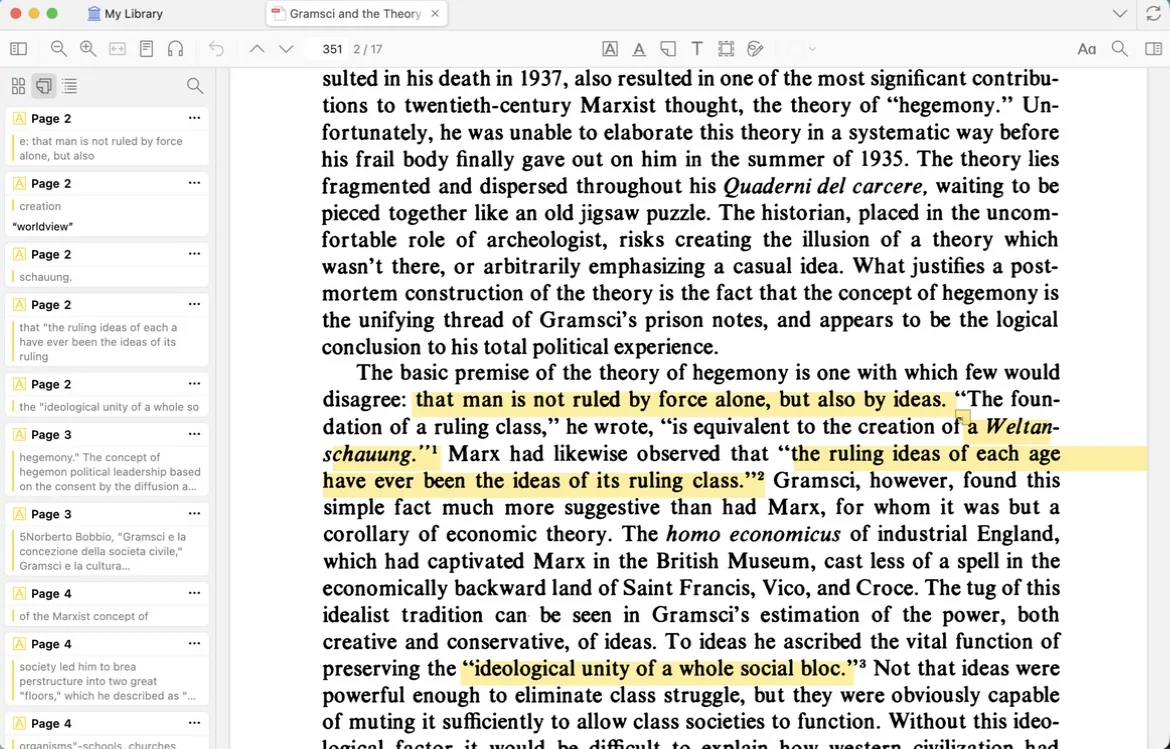
I read PDFs in Zotero’s own reader on my iPad. I use a highlight color system in order to organize a manuscript:
- Yellow is general, worth remembering.
- Red is a limitation, or a claim I am skeptical of.
- Green is wording I may quote.
- Blue is methodology.
- Purple is a question about the methodology.
- Magenta is a definition, or how a concept is operationalized.
- Orange is a question, or a place that needs more.
- Gray is structure, where the text says what it is about to do.
When a highlight needs a reaction I add a comment to it right there in the reader. The highlights and comments stay attached to the PDF in Zotero and become the raw material the vault pulls in later. I write very little in Zotero itself. The reading note lives in the vault.
From Zotero into the vault
The Zotero Integration plugin for Obsidian has two imports set up, and together they make two files for each source.
The first import, called “Source from Zotero,” builds the reading note. The note is named with an at sign and the key, so @bates1975, and it lands in the sources folder. The top of the note holds the metadata as properties: title, the authors as links to their own notes, year, journal or book, DOI, a link that opens the item in Zotero, a reading status that starts at unread, and empty slots for the projects and topics it will serve. Under the properties sit the formatted citation and the abstract, folded into collapsed callouts so they are there when I need them and out of the way when I do not.
Then a Templater script asks one question: what kind of work is this? The choices are empirical quantitative, empirical qualitative, mixed methods, conceptual, theory, review, primary document, report, commentary, and journalism. The answer is stored as a genre property and decides which headings the note gets. An empirical study gets purpose, methodology, sample, measures, findings, limitations, strengths, and recommendations. A theory text gets argument, key concepts, structure, and critiques and limits. Each of the other genres has its own set, and all of them end with the same heading, use in my work, because that is the question I was reading to answer. Item type in Zotero never decides this. A podcast episode might be commentary, or it might be a scholar describing a study, and the choice is mine.
The second import, “Annotations from Zotero,” writes a companion file in a subfolder called annotations. That file is regenerated from scratch every time the import runs, so I never type in it. Each highlight becomes a callout labeled by its color (limitation, quote, methodology, definition, and so on) with the page number, my comment if there is one, any tags I gave the highlight, and a link that opens the PDF in Zotero at that exact spot. The reading note embeds this file near its bottom, so the highlights appear inside the note without living in it. When I return to a text and highlight more, a small script called refresh-annotations re-runs the import for the one source I am looking at, and the embedded highlights update without a picker.
A source in the vault is therefore a reading note I write by hand (keyboar) plus a highlights file the machine maintains.
The garden itself
The vault is a folder of Markdown files that syncs through Proton Drive. The folder tree is short and flat on purpose. The sources folder holds reading notes. The notes folder holds the thinking: reference notes, analytic notes, synthesis notes, and a daily subfolder. The topics folder holds the concepts, people, organizations, places, and events that notes are about. The projects folder holds one note per thing I am making. The project-management folder holds tasks. The writing folder holds drafts, manuscripts, scripts, and slide decks. The documents folder holds research instruments, protocols, transcripts, and exports. Templates and attachments hold what their names say.

Folders are where notes sit, though, and never how they are classified. Tags do that. A tag says what a note is (source, reference, analytic, topic, project, draft), and links say what it is about. The Auto Note Mover plugin watches for the tag and files the note in the matching folder the moment the tag is added. I can create a note anywhere, tag it, and stop thinking about where it goes.
The note types run from the source outward.
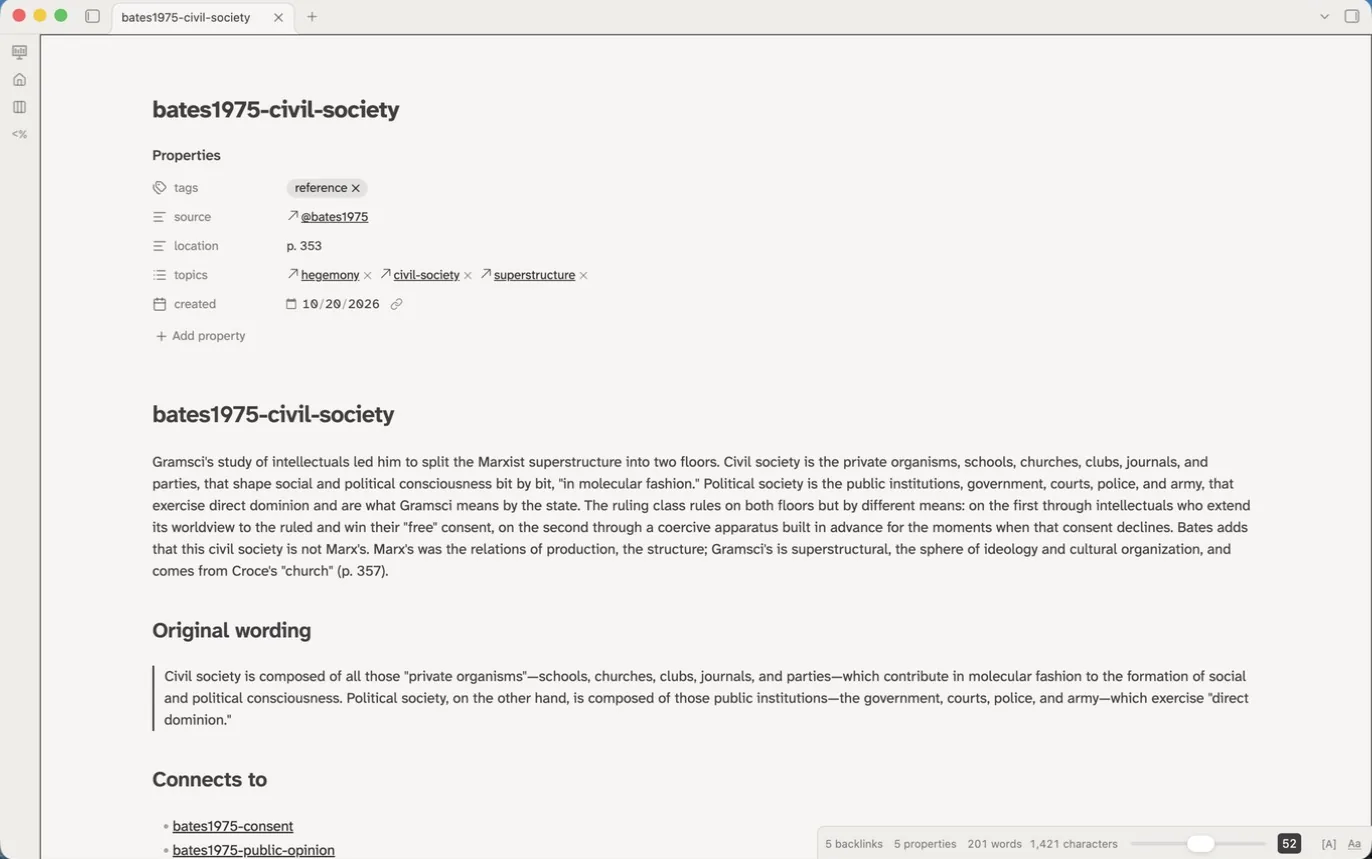
A reference note is one idea from one source, in my own words, with its location in the text. Its filename is the source key followed by a short handle for the concept, so bates1975-civil-society is what Bates says about civil society and nothing else. Reference notes are the smallest unit in the garden and the one I make most. The template asks which source the idea comes from and where, then fills in the link and the location for me. The body has three parts: the idea as I would put it in a paper, the original wording if the phrasing matters, and a list of the notes it connects to.
An analytic note is my own claim, built from two or more reference notes. It carries a growth property (seed, developing, stable) that records how far I would defend it. A synthesis note sits a level above and gives the shape of a whole literature or a whole question. It is the note I open before drafting a section.
A topic note is the hub for a concept. People, places, organizations, and events are topic notes as well, kept in the same flat folder and told apart by a second tag. Every topic note embeds a Bases query that lists every note linking to it, grouped by kind, so the index writes itself as the vault grows.
A project note names the thing being made (a paper, a talk, a grant application, a course) and never the venue; the venue is a property. The project note embeds its own task list, which comes from TaskNotes.
A daily note is a short log that I create only on days I work in the vault. It has a place for captures, a place for dated decisions, the day’s tasks, and two automatic tables of the notes created and touched that day. Nothing in it asks me to journal.
Four workspaces
Obsidian can save a whole window layout as a workspace and switch between layouts on demand. I keep four, and Cmd+Shift+L opens the switcher. The Homepage plugin loads the project-management workspace every time Obsidian launches, so the vault always opens to the same view.
Note-taking
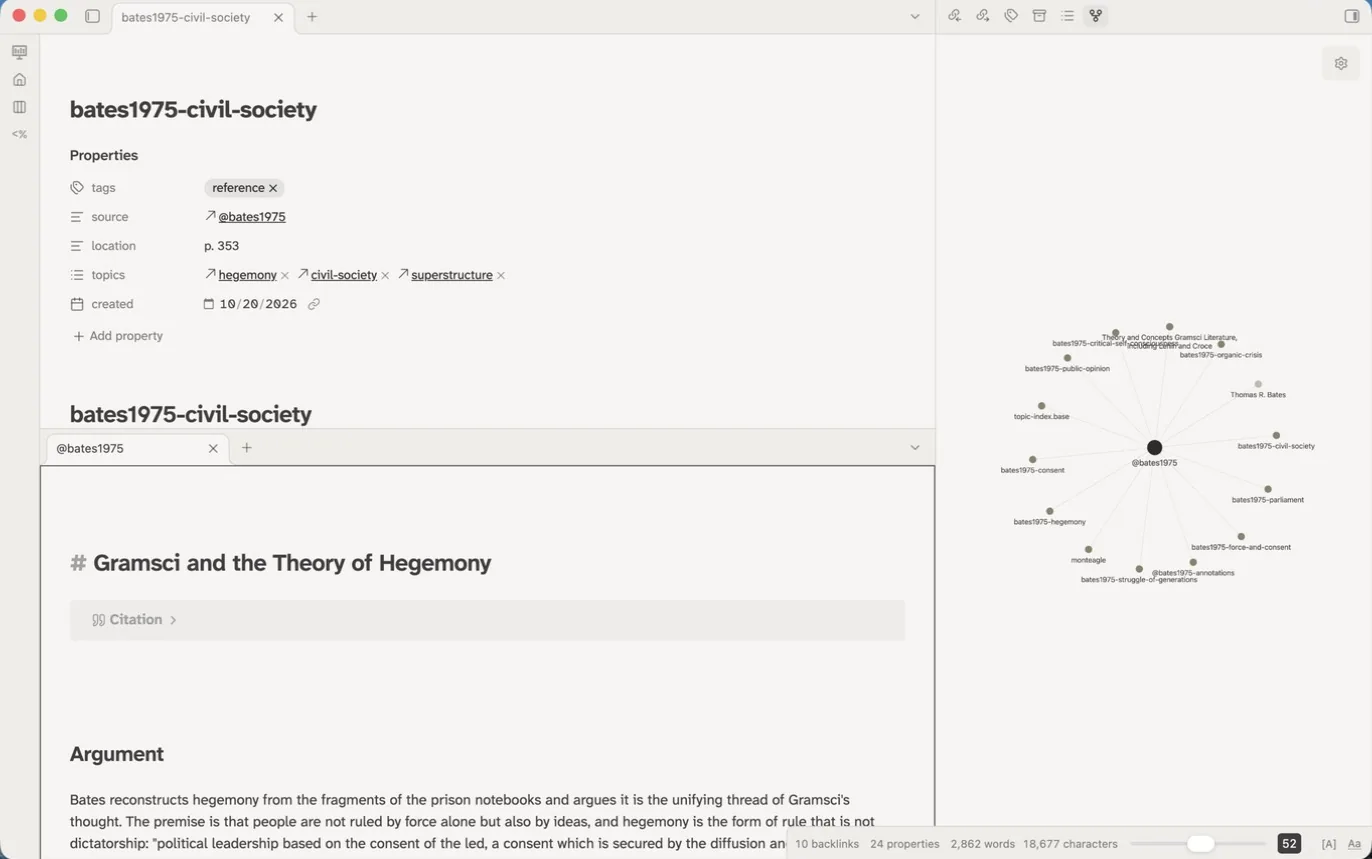
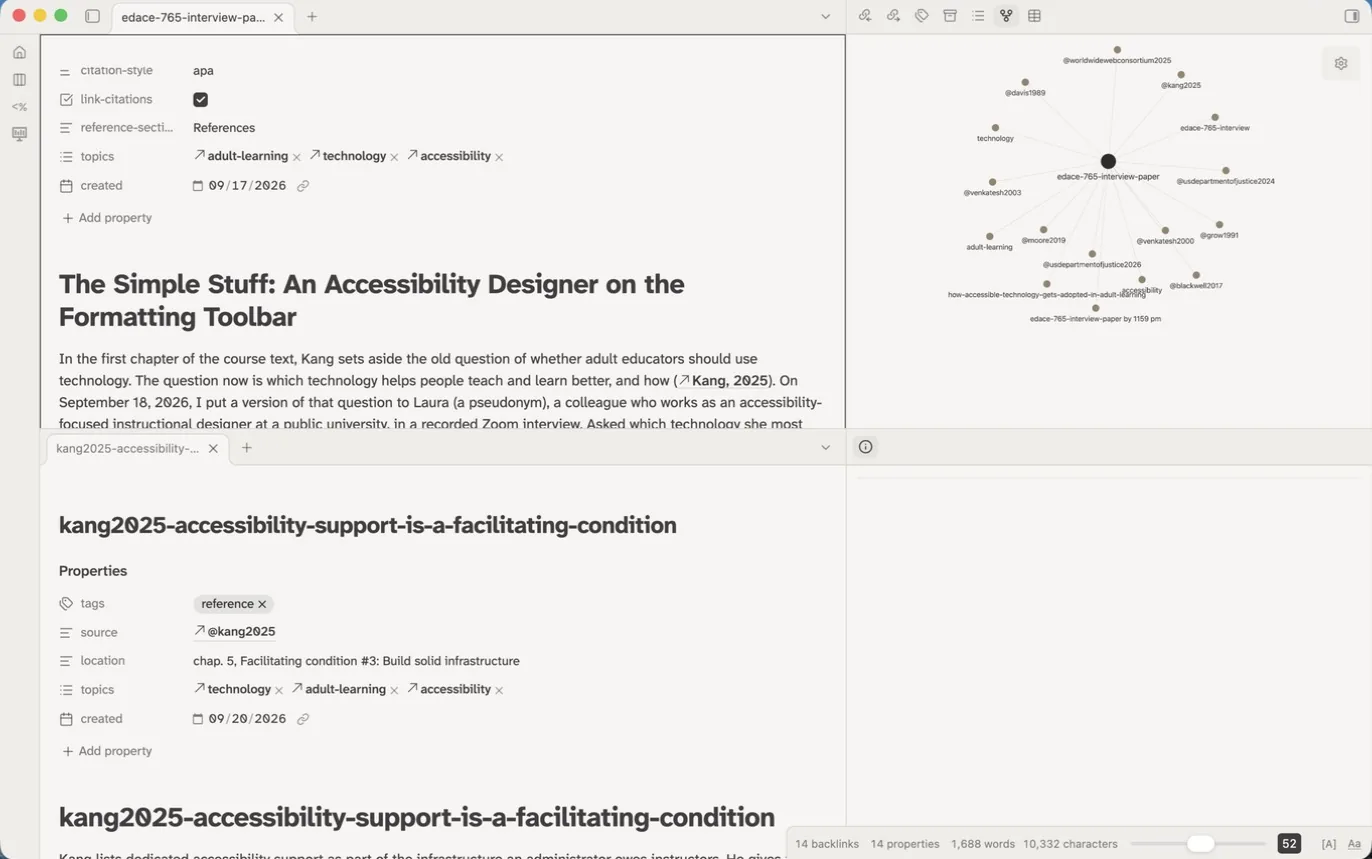
Note-taking is two editor panes, one above the other. The reference note I am writing goes on top and the source note or its highlights file goes underneath, and the right sidebar shows the local graph so I can watch what the new note is connecting to. The Open to Side plugin makes a modifier-click open a link in the neighboring pane instead of replacing what is in front of me.
Project management
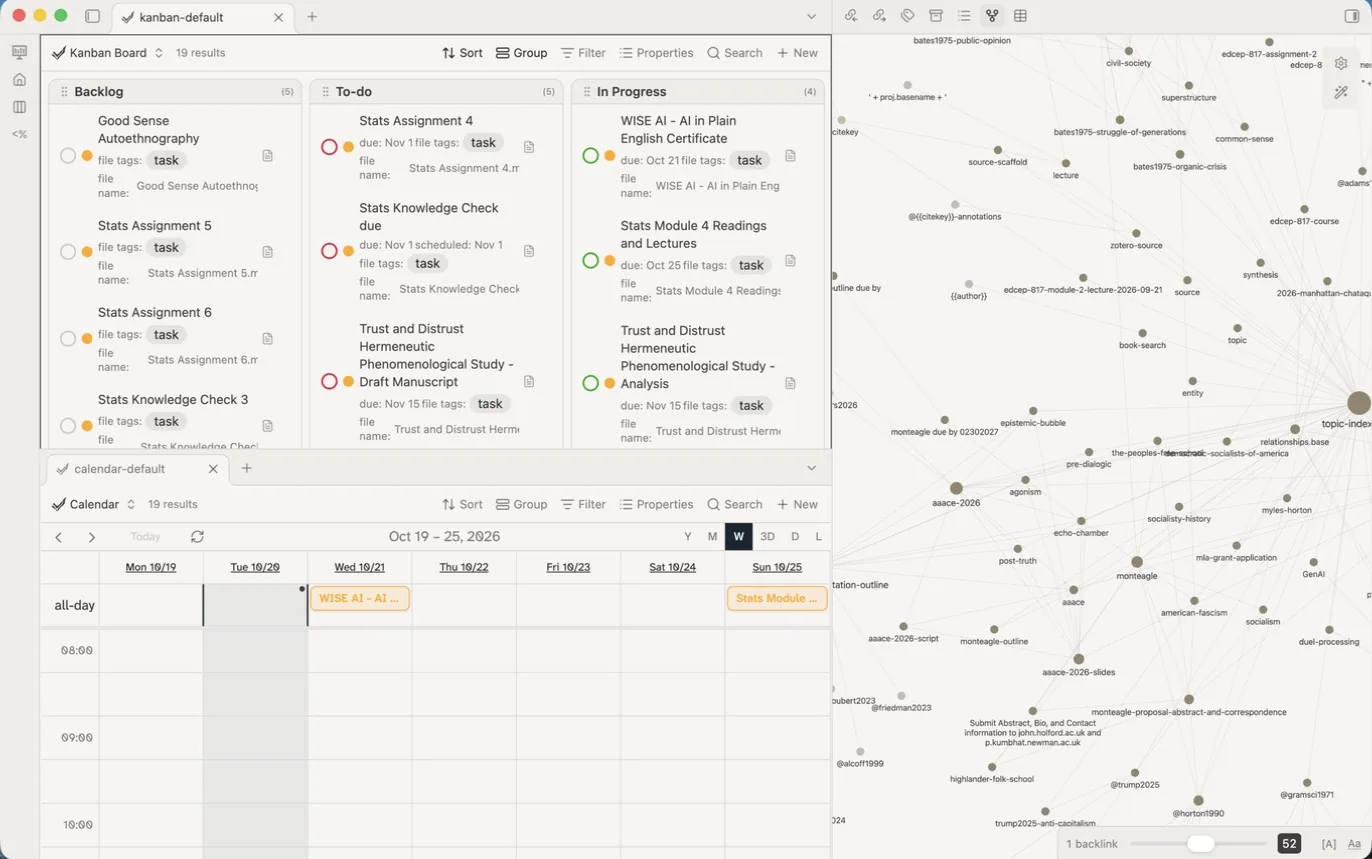
Project management is the launch view. Two panes sit one above the other: a kanban board of tasks by status on top and a calendar of due and scheduled dates below, both of them Bases files that TaskNotes provides. A task is its own small note with a status (backlog, to-do, in progress, in review, completed), a priority, dates, and the projects it belongs to. A project can be any note at all, so a task can name a reading note as its project and then appear at the bottom of that reading note. The right sidebar holds the full graph. A day starts here, with what is due and what can move.
Writing
Writing puts the draft on top and the reference note I am drawing on underneath, with the local graph in the right sidebar showing which sources the draft has cited so far. Citations go in as links while I write, so [[@kang2025|p. 320]] appears in the editor as a link reading p. 320, and the graph grows a node for each source the draft touches. The same sidebar holds the R environment and R help panes from the Ridian plugin, which runs R code blocks inside a note and renders Quarto documents.
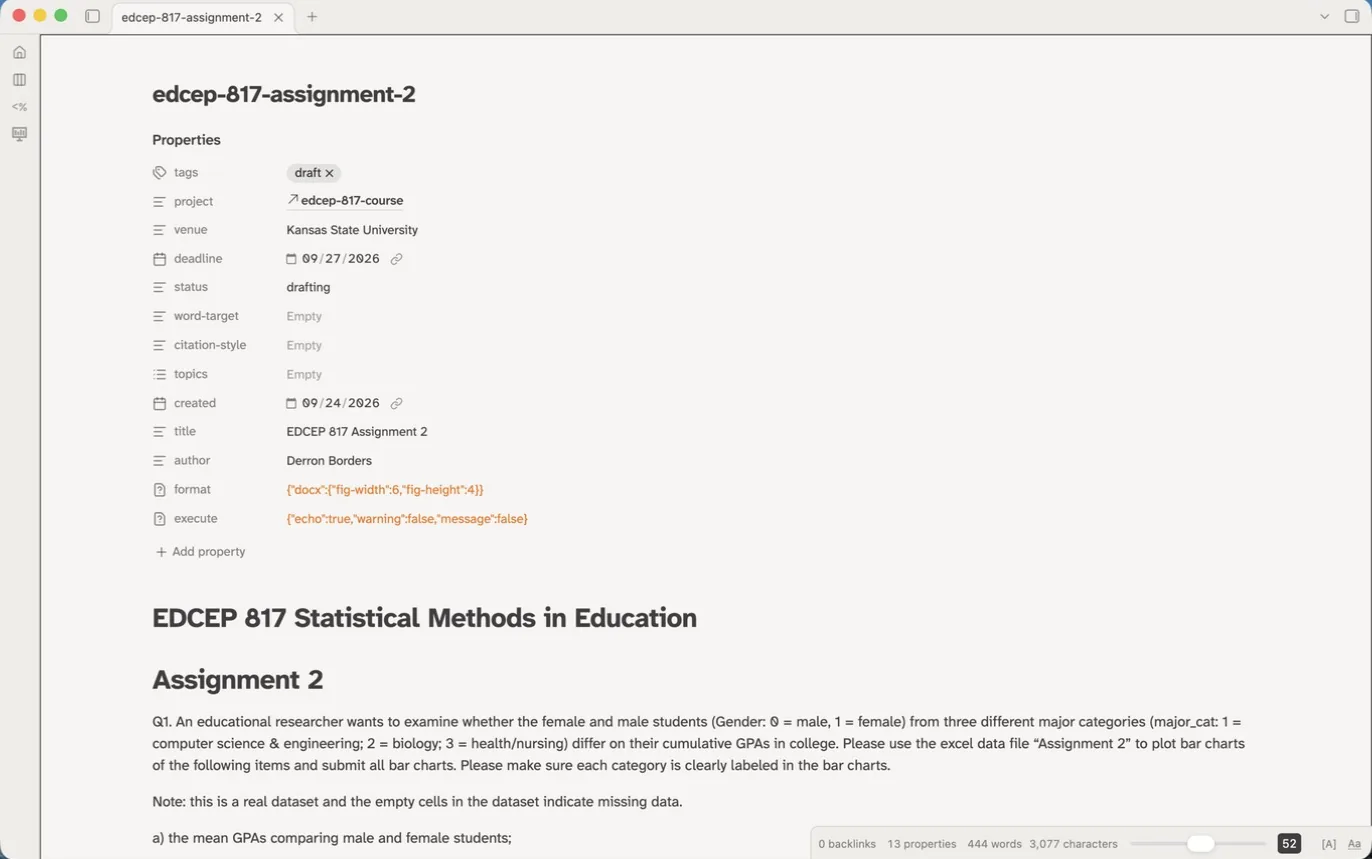
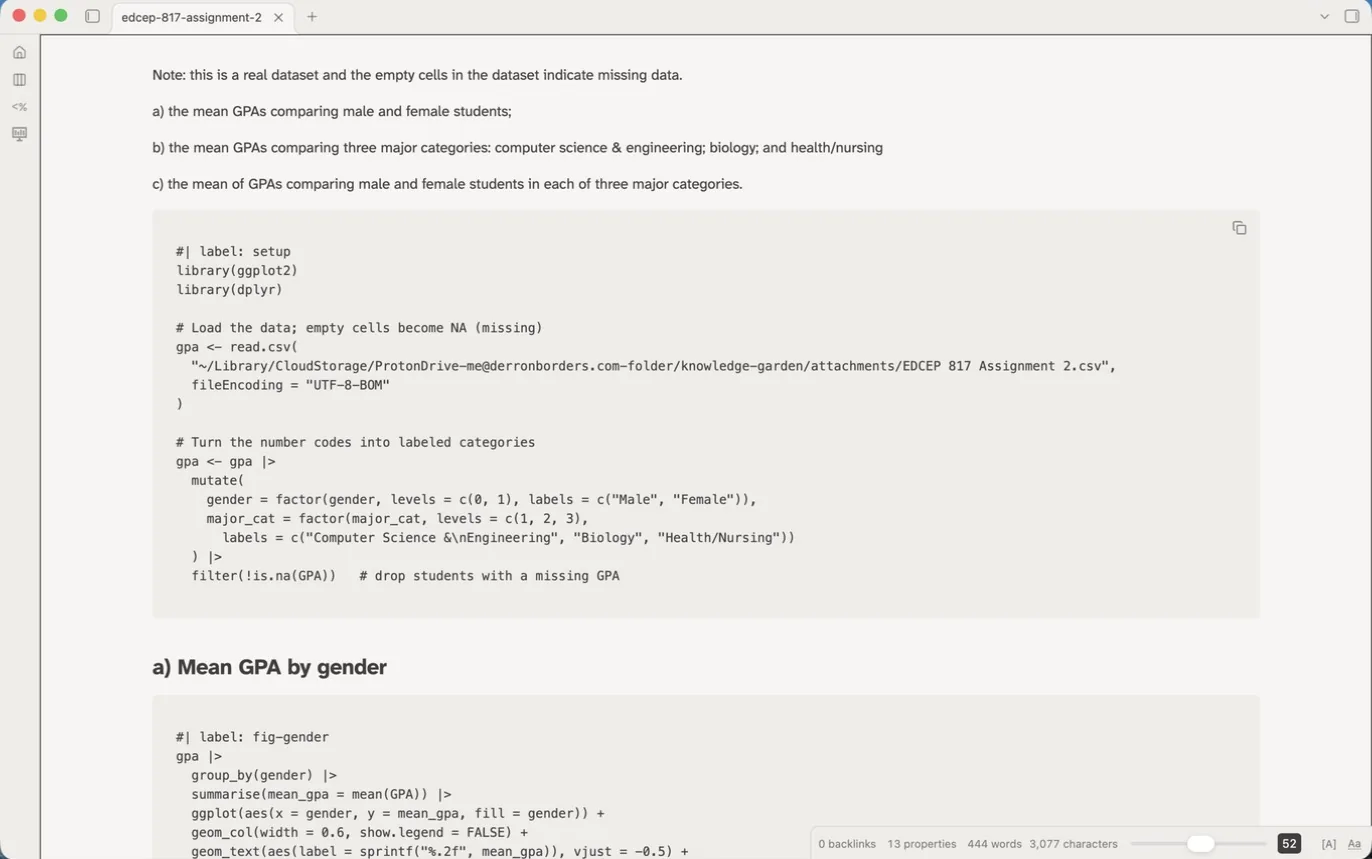
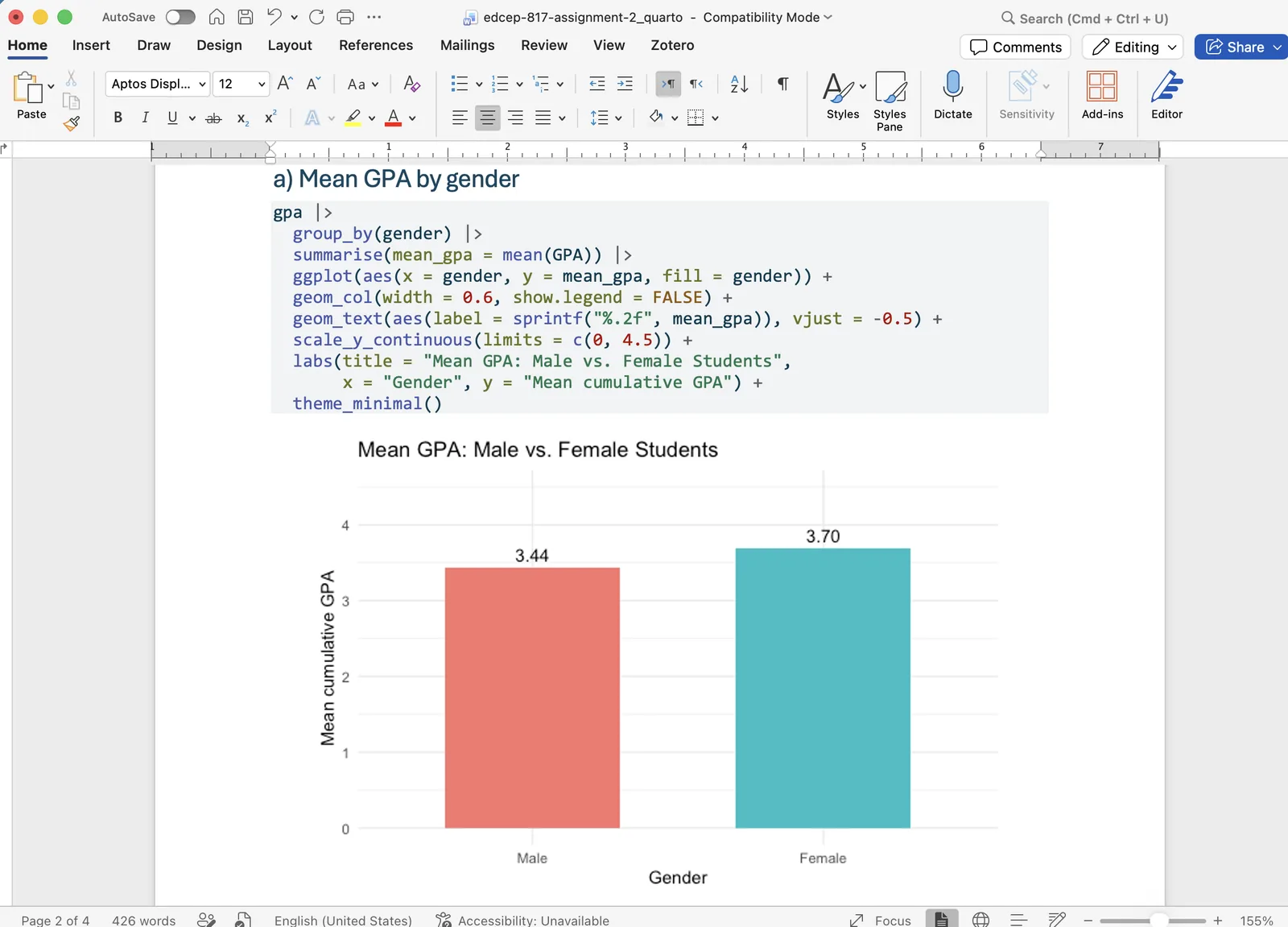
Statistics coursework is written in the same workspace as Quarto notes. The properties at the top of the note do double duty: the vault reads the project, deadline, and status, and Quarto reads the format and execute settings. The R chunks sit in the note like any other code block, and a single command renders the whole thing to Word with the code and the charts in place.
Presentations
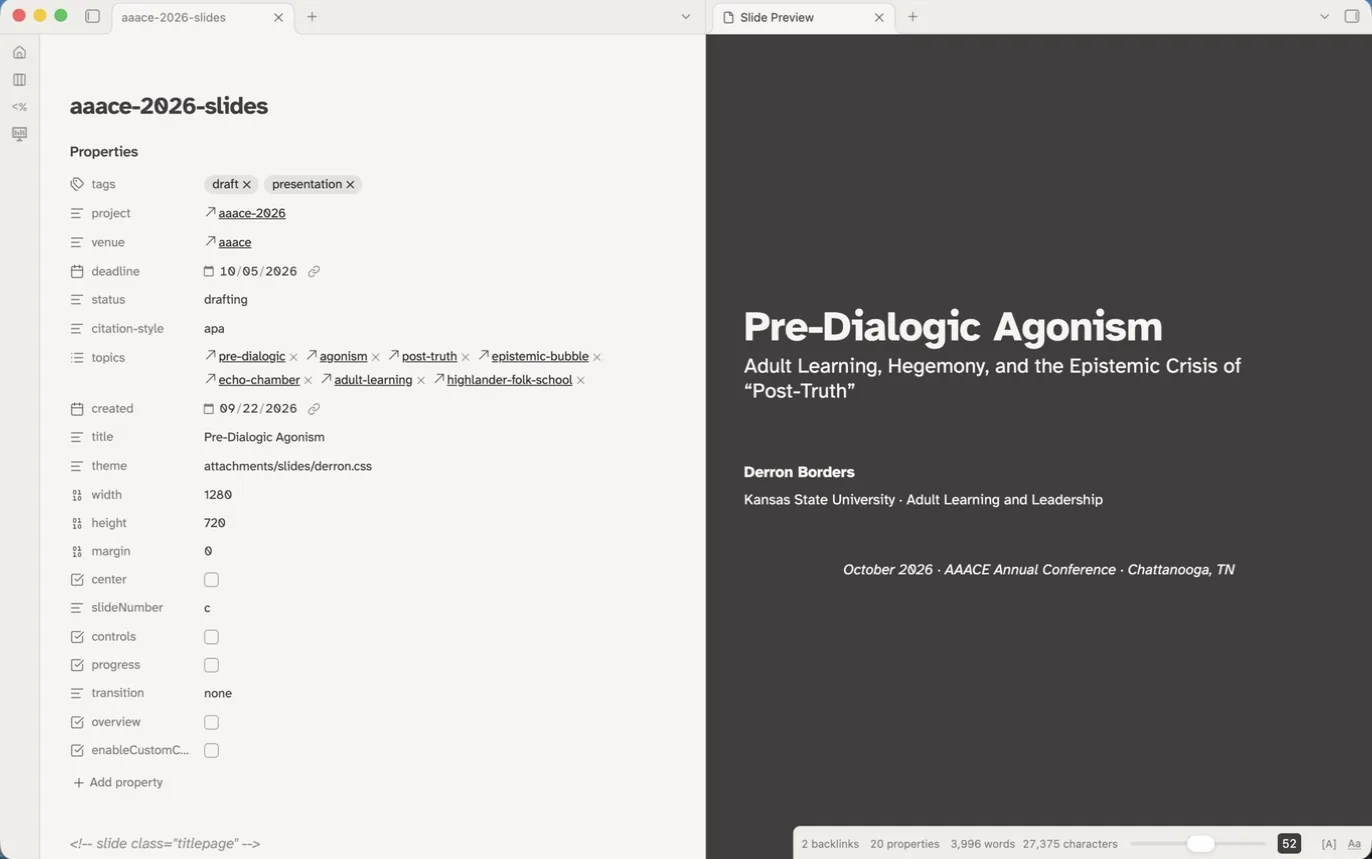
Presentations is the slide deck’s Markdown on the left and the live Advanced Slides preview on the right. Decks are ordinary files in the writing folder with a few extra properties for theme, size, and transitions, and the same project, venue, and topics properties as any other draft.
From notes to a manuscript
Drafts are built from reference and analytic notes, embedded or rewritten, and citations are typed as links to source notes: [[@kang2025]] on its own, or [[@kang2025|p. 12]] with a page. The source note already exists, so the link autocompletes from the key as soon as I type the at sign. A citation remains a real link inside the vault. Click it and the reading note opens with the highlights underneath.
In reading mode a plugin I wrote, Wikicite, shows those links as formatted citations: (Kang, 2025), or a footnote number when the note’s citation-style property names a notes-and-bibliography style. It hands the keys to Pandoc’s citation processor along with a CSL JSON export of my Zotero library and whichever style file the note asks for from Zotero’s own styles folder. A code block that says references becomes the bibliography. The links are untouched; only how reading mode displays them changes.
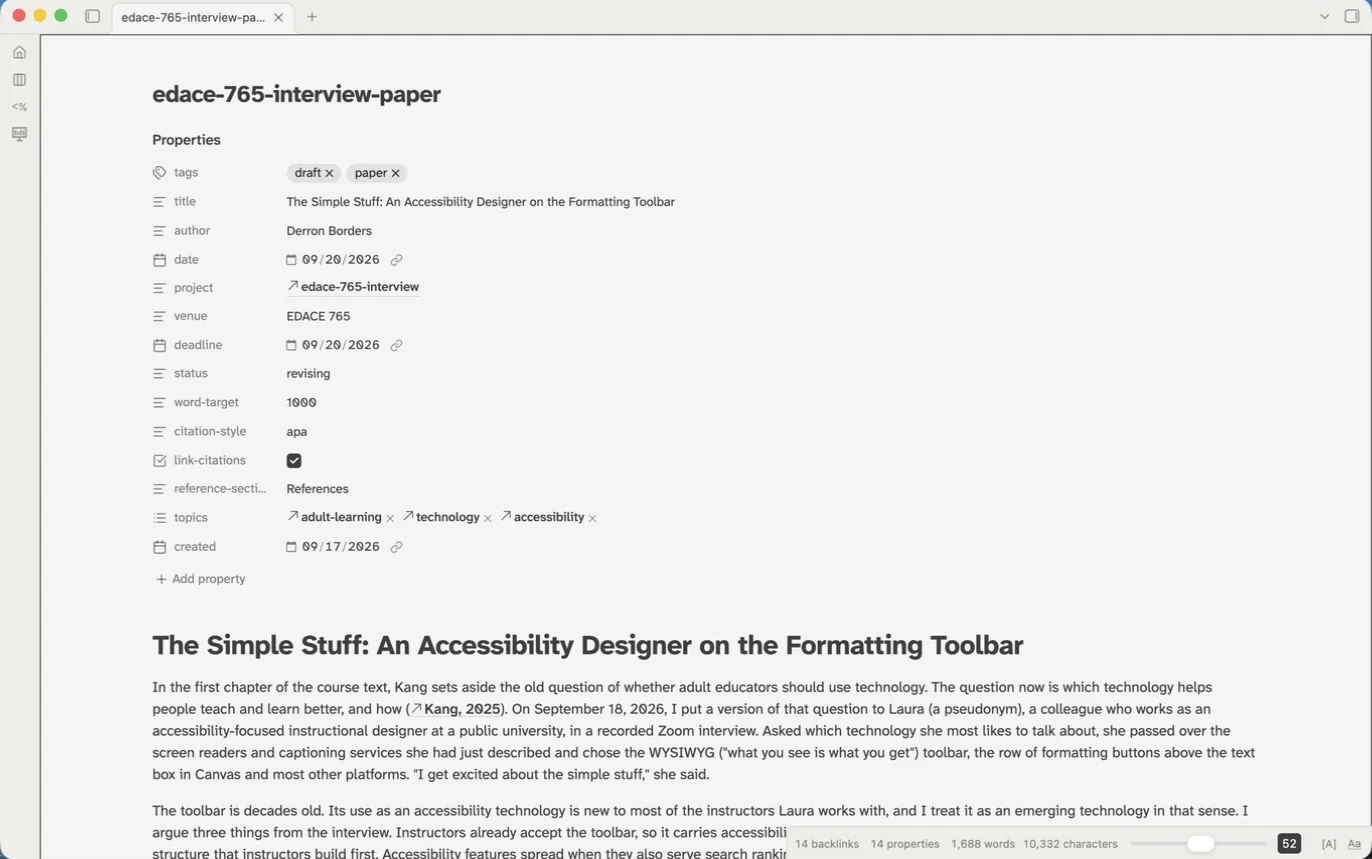
Export works the same way. A Pandoc Lua filter I wrote reads the wikilinks as citations on the way out, so the Pandoc plugin’s export to Word produces a document with proper in-text citations and a reference list in the style the note named. Reading mode and the exported file agree because they run the same engine. Better Export PDF covers the cases where a PDF is wanted straight from Obsidian, and Zotero Integration can also paste an APA in-text citation or a full reference entry when a draft is going somewhere the link trick will not reach.
Plugins
Obsidian’s own core plugins carry a lot of this: Bases, daily notes, workspaces, backlinks, outgoing links, the graph, bookmarks, properties, the outline, canvas, and slides. The community plugins installed as of October 2026 are the fllowing:
- Zotero Integration (mgmeyers): the two imports above, plus citation pasting.
- Templater (SilentVoid): every template in the vault that asks a question or moves a file is a Templater script.
- Auto Note Mover (faru): files notes by tag.
- TaskNotes (Callum Alpass): tasks as notes, the kanban and calendar, pomodoro, and time tracking.
- Homepage (novov): opens the project-management workspace on launch.
- Open to Side (Josh Sterckx): modifier-click opens links in the neighboring pane.
- Ridian (Michel Nivard): runs R inside notes and renders Quarto.
- Pandoc Plugin (Oliver Balfour): export to Word and other formats, with my Lua filter attached.
- Better Export PDF (l1xnan): PDF export with outline and headers.
- Advanced Slides (Matthäus Szturc): reveal.js decks from Markdown.
- Book Search (anpigon): creates a source note for a book that is not going into Zotero.
- Dataview (Michael Brenan): installed; the indexes in the vault are Bases files rather than Dataview queries.
- Excalidraw (Zsolt Viczian): sketches and diagrams.
- Advanced Tables (Tony Grosinger): table editing.
- Highlightr (chetachi): a highlighting menu for Markdown text.
- LanguageTool Integration (Clemens Ertle): grammar and spelling.
- Editor Width Slider (MugishoMp): line length on demand.
- Paste URL into selection: turns selected text into a link when a URL is on the clipboard.
- Iconize: icons on folders.
- Dictionary and Emoji Toolbar: installed, switched off.
Two plugins are mine that I wrote for my needs. Wikicite is the Obsidian plugin described above, and templates/pandoc/wikicite.lua is its companion filter for Pandoc, so the citation display in reading mode and the citations in an exported Word file come from the same logic. Both are small and both live inside the vault. The Templater scripts are mine as well: the genre question on a source note, the reference-note template that asks for source and location, refresh-annotations, and the templates for projects, drafts, presentations, instruments, protocols, transcripts, lectures, participants, and entities. A second plugin I wrote, QDA Coder, is for coding interview transcripts and lives in a separate research vault rather than here. It does what NVivo does but does not cost anything and does not crash on my Apple products like NVivo does.
The current theme that I am using in Obsidian is Notation, with view headers hidden. Everything in the vault is a plain text file. Nothing above depends on a service (except my Proton Drive), and the folder will open in any editor if Obsidian goes away.